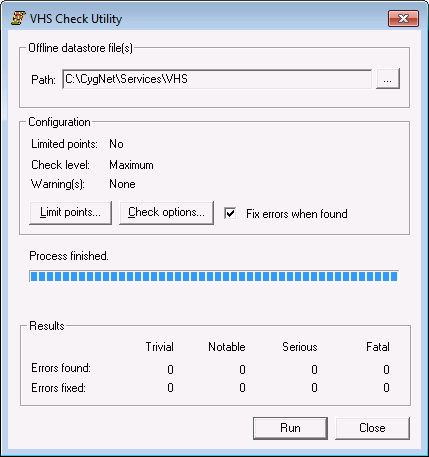
The VHS Check utility performs a data integrity check on the VHS database. The check is required whenever the VHS is abnormally shut down. Events that can cause an abnormal shut down include power loss to the host SERVER, killing the VHS (using task manager or from the service screen), or other anomalies. If corruption errors are found, the utility will repair them. If such errors are left unaddressed, future unexpected shutdowns might occur.
If the VHS is running as a system service controlled by the Remote Service Manager (RSM), the only notice you will receive of improper shutdown detection will be in the VHS log file (unless you are using SVCMON to monitor it). Therefore, it is imperative to be mindful of the status of your VHS in the RSM after any unexpected system shutdowns.
You can configure the VHS to automatically run VHS Check by enabling the VHS Check Keywords in the VHS configuration file (Vhs.cfg).
Note: If using VHS Quick Recovery the automatic service check is not applicable.
Warning: CygNet Software recommends that you do not run the VHS Check utility on a "dirty" database. See VHS Quick Recovery for more information. If you wish to run VHS check on a "dirty" database, make a copy of the files before running the check. This preserves the "dirty" database in its failed state in case further analysis by CygNet Support is necessary.
The results of VHS Check are written to a log file. The name of the file is VhsCheck001.log (the previous session’s file is named ~ VhsCheck001.log). This file is stored in the folder from which the utility was run. The log file lists the points for which the check was run and results of the check.
Note: While the VHS legacy datastore type is now obsolete, you can still run any VHS utility against a VHS legacy datastore.
VHS Check is stored in the CygNet\Utilities directory (VhsCheck.exe) on the host server. The VHS must be stopped to run this utility.
A 64-bit version of the VHS Check utility (VhsCheck64.exe) is also available. It can handle larger data sets associated with 64-bit services. The 64-bit utility can be installed using the CygNet Client Installer: select VHS Check Utility - 64-bit from the APPS/UTILS folder.
To install and launch (start) the application or utility using version management:
-OR-
Alternatively, browse to the CygNet\Utilities directory using Windows Explorer and double-click the program icon. You can also start an application or utility from a command line. These methods do not provide version management.
The VHS Check Utility dialog box appears.
To Use VHS Check
Note: If the offline datastore is split (for example, the main datastore file (history.edb) is in one location and the transaction log files (\txlogs) are in another location) the VHS Import Export utility will determine this from the service configuration file.
If you receive an error message warning you that the history file set does not match, see VHS File Synchronization for more information.
Note: Make sure the datastore version you are currently using (1 for legacy datastore or 2 for ESE-based datastore) is specified in the VHS service configuration file. If the datastore version is not specified, and both datastore versions exist, the utility will fail to run.
More:

|
|
|


